Personal binder
How to add a card that isn't in PTC Binder
Not every Pilot Trading Card is in our catalog. Some are too new, and some never will be. You can still keep track of any card you own, with your own photos, in the Personal binder.
Why a card might be missing
The catalog lists the cards airlines and airports hand out, and the cards of the creators we work with. When a card is not there, it is usually for one of two reasons.
- It is new, or we have not found it yet. Programs print new cards every year, and we add them as we learn about them. Tell us about it and we will take a look.
- Someone made it on their own. Collectors sometimes design and print their own cards and offer them in collector groups. Unless we work with the person who made them, they stay out of the catalog. They can still be part of your collection.
Either way, the Personal binder is where it goes, and it takes about a minute.
1. Add the Personal binder
- On the Binders tab, tap the + button, Add a Binder.
- Tap Personal, the one that says “Create your own collections”.
It joins your other binders. You only do this once.
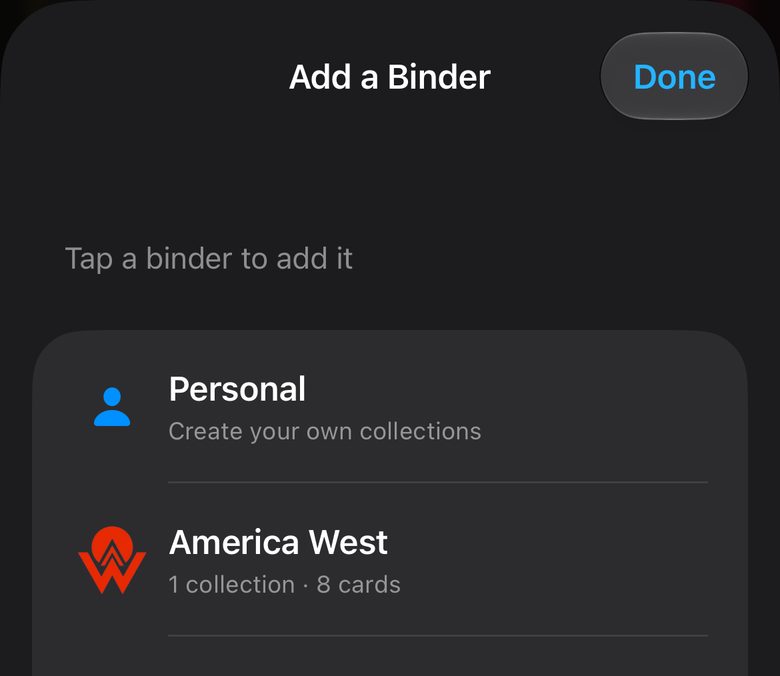
2. Create a collection
Personal cards live in collections you make yourself, so you can group them however you like: by airline, by year, or by the event where you got them.
- Open Personal and tap Add a Collection.
- Give it a name, and pick an icon and a color.
- Tap Create.
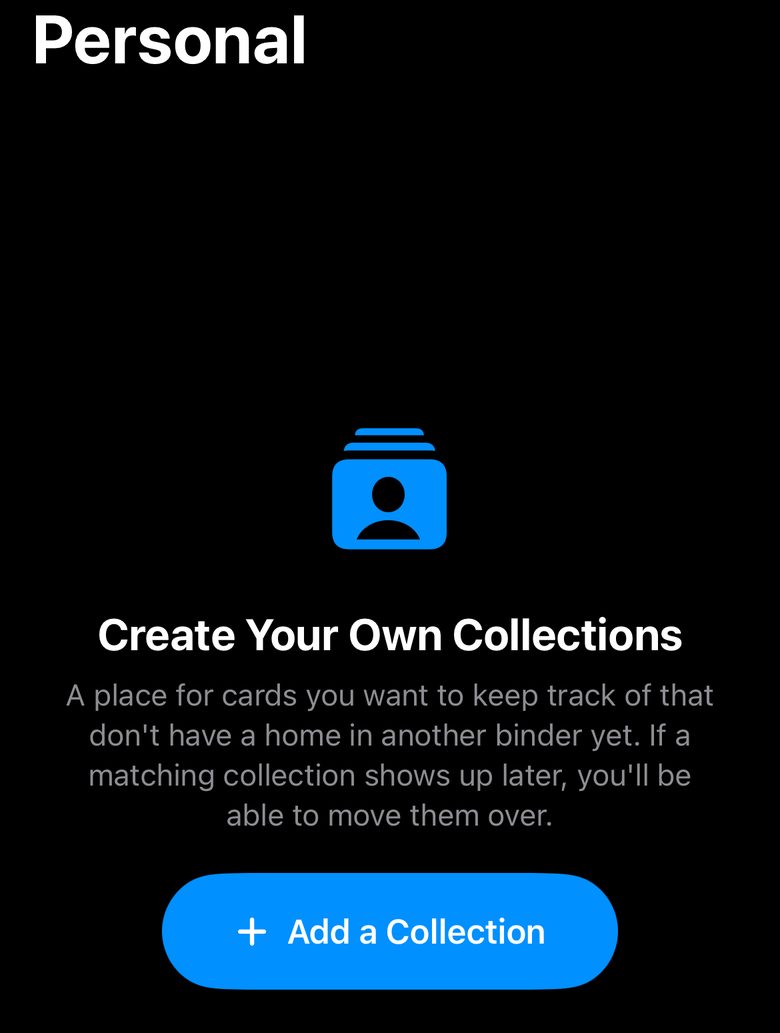
3. Add the card
- Open your collection and tap Add a Card.
- Fill in Model, Airplane, or Name, the only field you need. Everything else, like the card number, the year and the card's size, is optional.
- Tap Create. Then add the photos of the front and back from the card, the same way as any other card.
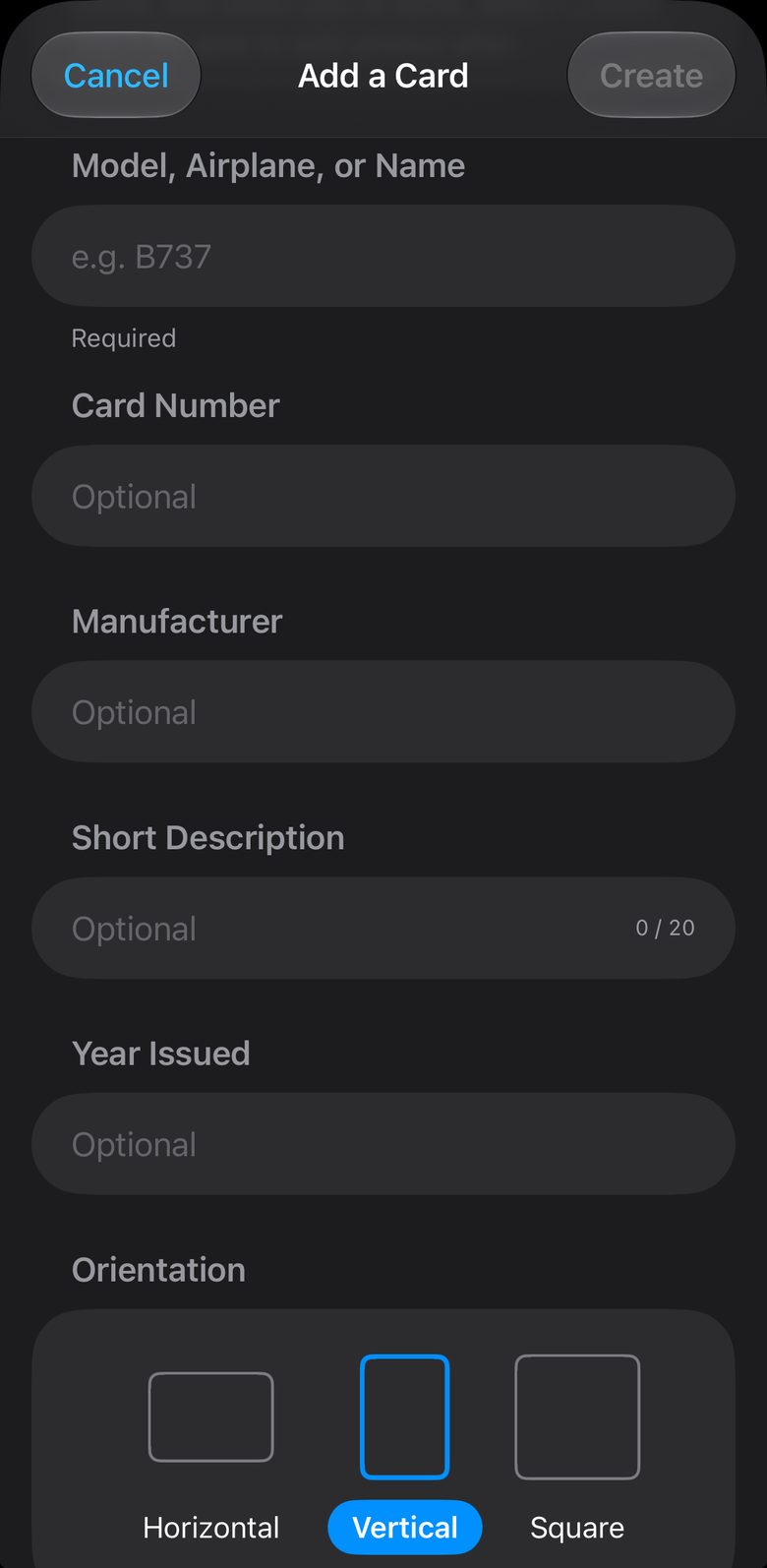
What a personal card can do
It opens on the same card page as every other card, so you can photograph it, mark it collected or put it on your wishlist. Photos count the same way too: a personal card with photos is one of the seven cards you can photograph free, and one without photos does not count.
If the card joins the catalog later
If we add the card to the catalog later, you can move yours over without losing anything. Open your personal card, tap the three-dot menu and choose Move to a Different Binder, and its photos move with it. The option appears once the card is collected or on your wishlist.
To move a card between your own collections instead, the same menu has Move to Another Collection.
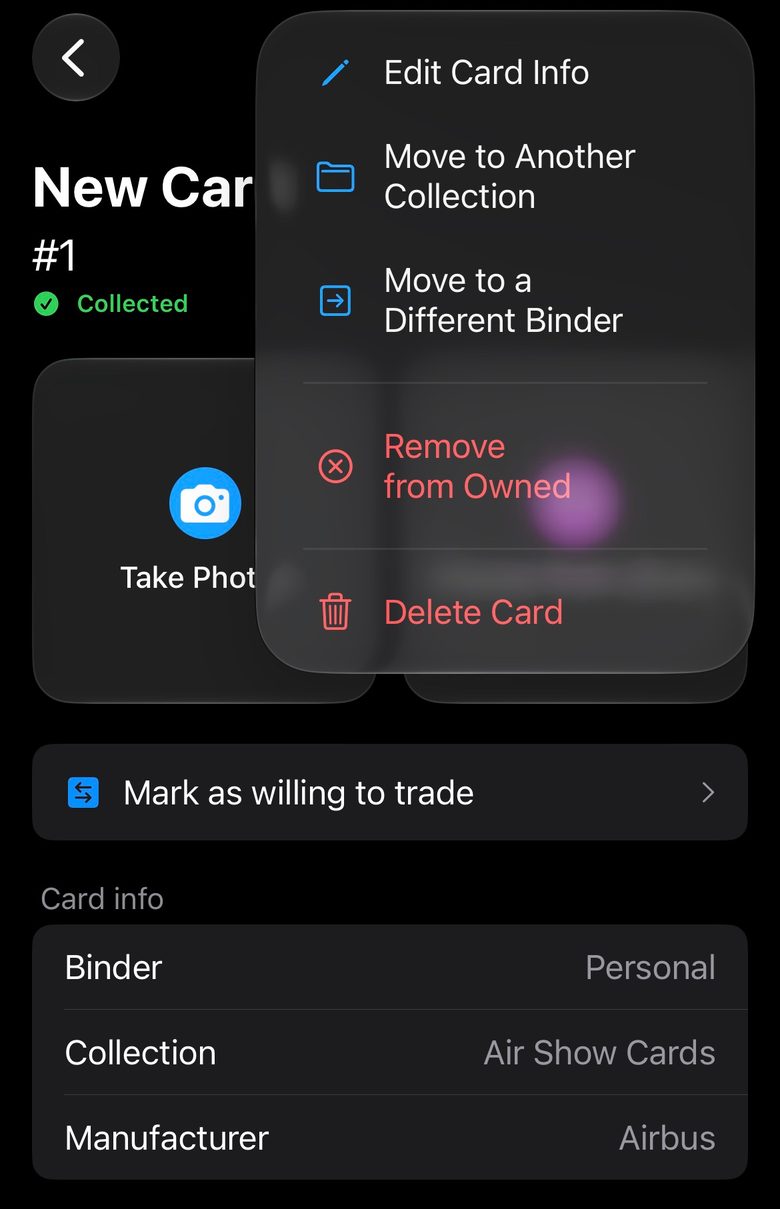
How to Add Your Own Pilot Trading Cards
Every card you own, in one place